
What is a PC Bottleneck?
Whether you are building a budget gaming rig or upgrading to a high-end workstation, understanding PC hardware bottlenecks is the single most important step to getting maximum performance for your money. Our free PC Bottleneck Calculator — powered by 2026 benchmark data — helps you analyze, compare, and optimize any CPU and GPU combination in seconds.
What is a PC Bottleneck and How Does It Affect Performance?
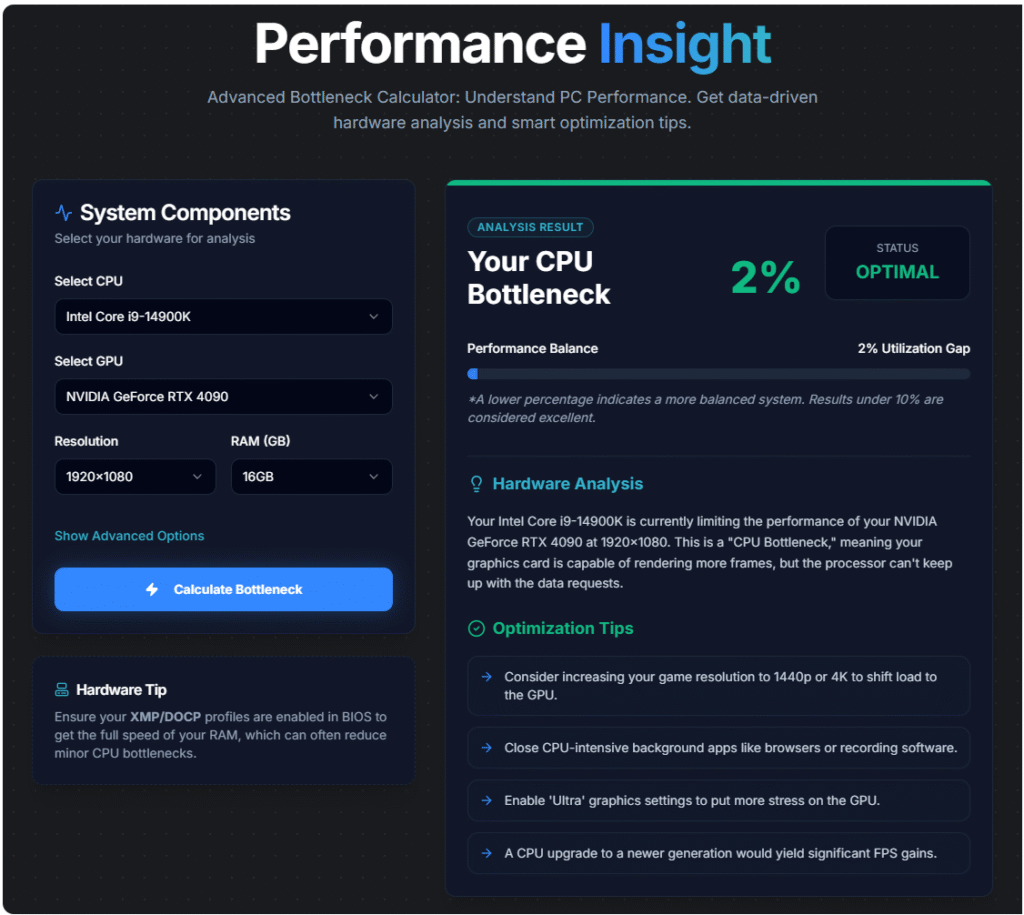
A PC bottleneck occurs when one hardware component — typically the Central Processing Unit (CPU) or Graphics Processing Unit (GPU) — is significantly more powerful than the other, causing the weaker component to limit overall system performance. Think of it like a highway: if ten lanes of traffic are forced into two lanes, the entire flow slows down regardless of how fast the cars are.
In gaming, a bottleneck directly impacts your Frames Per Second (FPS), frame time latency, and 1% lows. A system with a severe CPU bottleneck will experience stuttering in games, inconsistent frame delivery, and low GPU utilization — meaning you paid for a powerful graphics card that sits idle while gaming. Identifying and fixing bottlenecks is essential to achieving a well-balanced PC build with true hardware synergy.
How Our PC Bottleneck Calculator Works (2026 Benchmarks)
Our tool uses a database of normalized benchmark scores sourced from the latest 2026 hardware data. When you select your CPU and GPU, the calculator retrieves each component’s performance score, applies a resolution weight multiplier, and calculates the utilization gap between components — expressed as a bottleneck percentage. RAM capacity is also factored in, since insufficient memory bandwidth is one of the most overlooked causes of system bottlenecking.
Types of Hardware Bottlenecks: CPU, GPU, and RAM
CPU Bottleneck
A CPU at 100 percent usage while the GPU sits at 50–70% utilization is the classic sign of a CPU bottleneck. This is caused by weak single-thread performance, low clock speed, or insufficient multi-core performance — and it is especially common at 1080p where games are heavily processor-dependent.
GPU Bottleneck
A GPU bottleneck occurs when your graphics card is fully utilized (90–100%) while the CPU has headroom to spare. For gaming, this is the ideal state. However, VRAM limitations and PCIe lane limitations can contribute to GPU bottlenecks in bandwidth-intensive scenarios like ray tracing and DLSS 4.0 / FSR 4.0 workloads.
RAM Bottleneck
Often overlooked, insufficient RAM or slow memory speed can bottleneck both CPU and GPU. AMD Ryzen processors are especially sensitive to memory bandwidth due to their Infinity Fabric architecture. For modern gaming, 16GB DDR5 in dual-channel configuration is the recommended minimum.
CPU vs. GPU Bottleneck: Which One is Worse for Gaming?
For pure gaming performance, a GPU bottleneck is always preferable to a CPU bottleneck. When the GPU is the limiting factor, your processor handles game logic, AI, and physics without causing stuttering. A CPU bottleneck introduces frame time latency and drops in 1% lows that make gameplay feel unsmooth — even when average FPS looks acceptable.
CPU Bottleneck vs GPU Bottleneck — Side by Side
| Factor | CPU Bottleneck | GPU Bottleneck |
|---|---|---|
| Gaming Impact | Severe — stuttering & low 1% FPS | Ideal — GPU works at full capacity |
| GPU Utilization | Low (50–70%) — GPU sits idle | High (90–100%) — fully utilized |
| CPU Utilization | 100% — processor maxed out | Low to moderate — CPU has headroom |
| FPS Impact | Inconsistent frame delivery | Limited but consistent FPS |
| Common at Resolution | 1080p — CPU-heavy workloads | 1440p / 4K — GPU-heavy workloads |
| Fix Difficulty | Harder — requires CPU upgrade | Easier — raise resolution or DLSS |
| Content Creation | Major issue — encoding suffers | No impact on CPU workloads |
| Verdict | ❌ Avoid | ✅ Preferred |
Real-World Gaming Examples: Bottleneck in Action
Understanding bottleneck theory is one thing — seeing it in your favorite games is another. Here is how bottlenecks manifest in three of the most popular titles in 2026:
Fortnite — CPU Bottleneck at 1080p
Fortnite’s Unreal Engine 5 update made the game far more CPU-dependent than its predecessor. Players pairing an older processor like the Intel Core i5-10400F with a modern RTX 4070 at 1080p will notice their CPU hitting 95–100% usage during large build battles, while the GPU sits at only 60% utilization. The result is stuttering in games during peak action and poor 1% lows — even if average FPS appears high. The fix: switch to 1440p to shift load to the GPU, or upgrade to a 12th/13th gen Intel processor.
Warzone — GPU Bottleneck at 4K
Call of Duty Warzone is one of the most graphically demanding battle royale games available. At 4K UHD (2160p) with maximum settings, even a top-tier AMD Ryzen 9 7950X3D will show a GPU bottleneck when paired with an RX 6800 XT — because the massive pixel load overwhelms the GPU while leaving the CPU underutilized. In this case, a GPU bottleneck is perfectly acceptable and expected. Enabling FSR 4.0 can recover 20–40% additional FPS without sacrificing visual quality, making it the ideal fix without a hardware upgrade.
GTA 6 — Balanced System Requirements
Rockstar’s GTA 6 (PC release 2026) is one of the first AAA titles specifically optimized for next-gen hardware compatibility. It demands both strong multi-core CPU performance for NPC simulation and open-world streaming, and high GPU horsepower for its photorealistic rendering. A well-balanced mid-range build — such as an Intel Core i7-14700K paired with an RTX 4080 at 1440p — delivers a bottleneck of under 8%, resulting in smooth gameplay above 60 FPS at ultra settings. This is the perfect example of hardware synergy in a demanding next-gen title.
The Impact of Resolution (1080p, 1440p, 4K) on Bottlenecks
At 1080p (FHD), games are heavily CPU-dependent — a weak processor bottlenecks even a mid-range GPU. At 1440p (QHD), GPU workload increases significantly, naturally shifting the bottleneck toward the graphics card. At 2160p (4K UHD), the GPU is almost always the bottleneck regardless of processor because rendering four times the pixels of 1080p demands extreme GPU horsepower. Our calculator automatically adjusts the resolution weight multiplier for every analysis.
Practical Tips to Reduce or Fix PC Bottlenecks
For CPU Bottlenecks
Increase your gaming resolution to shift load to the GPU. Enable GPU-intensive settings like ray tracing. Close background applications. Overclock your processor if supported. For severe cases, upgrading to a newer generation CPU with stronger single-thread performance is the most effective fix and ensures a future-proof gaming rig.
For GPU Bottlenecks
Enable DLSS 4.0 (NVIDIA) or FSR 4.0 (AMD) for a free FPS boost. Lower resolution-dependent settings like shadow quality and texture resolution. Always check your next-gen hardware compatibility and upgrading path before purchasing a new GPU.
Popular Bottleneck-Free PC Builds for 2026
Budget — 1080p: AMD Ryzen 5 5600 + RTX 3060 + 16GB DDR4 — perfectly balanced for smooth 1080p high-settings gaming.
Mid-Range — 1440p: Intel Core i5-13600K + RTX 4070 + 32GB DDR5 — excellent hardware synergy for high-refresh 1440p gaming.
High-End — 4K: AMD Ryzen 9 7900X3D + RTX 4090 + 32GB DDR5 6000MHz — the ultimate well-balanced build for 4K ray tracing.
Why Tekxova is the Most Trusted Tool for Hardware Analysis
At Tekxova, we provide data-driven hardware analysis that empowers every PC builder. Our PC Bottleneck Calculator is updated with 2026 benchmark data, supports 100+ CPUs and GPUs, and delivers instant results with actionable optimization tips — completely free. Optimize smarter, build better, game harder
Use our free PC Bottleneck Calculator
to instantly check any CPU and GPU
combination before buying. Our PC
Bottleneck Calculator supports all
major Intel and AMD processors, NVIDIA
and AMD graphics cards, and multiple
resolutions including 1080p, 1440p,
and 4K. Whether you are a first-time
PC builder or an experienced gamer,
the PC Bottleneck Calculator gives you
data-driven results in seconds —
completely free.
Frequently Asked Questions — PC Bottleneck Calculator
1. Increase your gaming resolution — switching from 1080p to 1440p or 4K shifts more work to the GPU, reducing CPU load.
2. Enable maximum graphics settings — higher GPU-intensive settings reduce the CPU’s relative load.
3. Close background applications — browsers, streaming software, and Discord all consume CPU resources.
4. Overclock your CPU — if your processor supports it, increasing clock speed can reduce bottleneck.
5. Upgrade your CPU — the most effective long-term solution for severe CPU bottlenecks.
• Budget builds: Intel Core i5-12400F + RTX 3060 or AMD Ryzen 5 5600 + RX 6700
• Mid-range builds: Intel Core i5-13600K + RTX 4070 or AMD Ryzen 7 7700X + RX 7800 XT
• High-end builds: Intel Core i7-14700K + RTX 4080 or AMD Ryzen 9 7900X + RX 7900 XTX
• Enthusiast builds: Intel Core i9-14900K + RTX 4090 or AMD Ryzen 9 7950X3D + RTX 4090
Use our free bottleneck calculator above to check any specific combination you’re considering.
1. Select your CPU from the dropdown menu — we support 50+ processors from Intel and AMD.
2. Select your GPU — choose from 50+ graphics cards including NVIDIA and AMD.
3. Choose your resolution — 1080p, 1440p, 4K, ultrawide, and more options available.
4. Select your RAM — choose your current RAM capacity in GB.
5. Click “Calculate Bottleneck” — instantly get your bottleneck percentage, analysis, and optimization recommendations.
The calculator will tell you whether you have a CPU bottleneck, GPU bottleneck, or a perfectly balanced system.